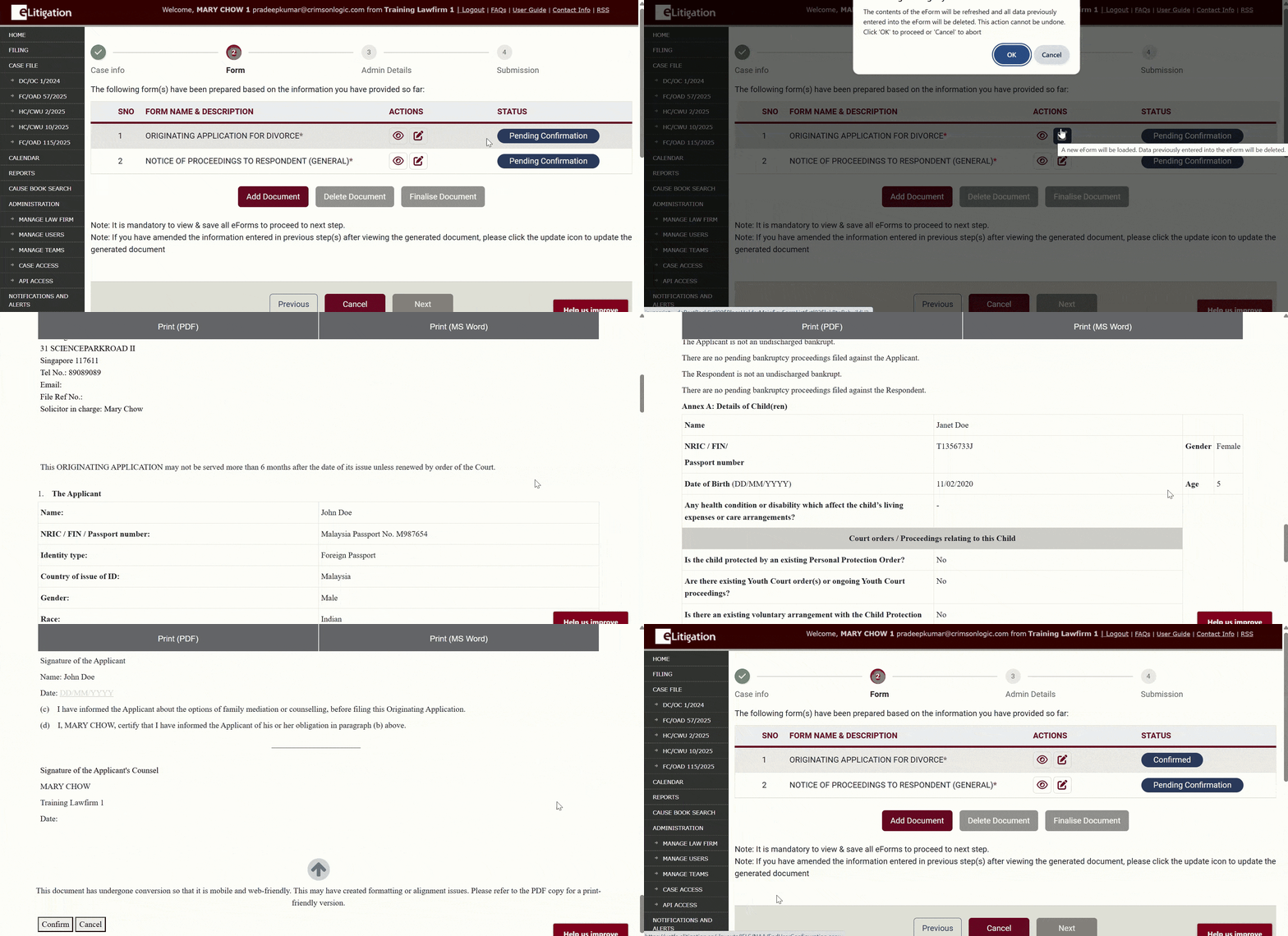
Update eForm after editing case details
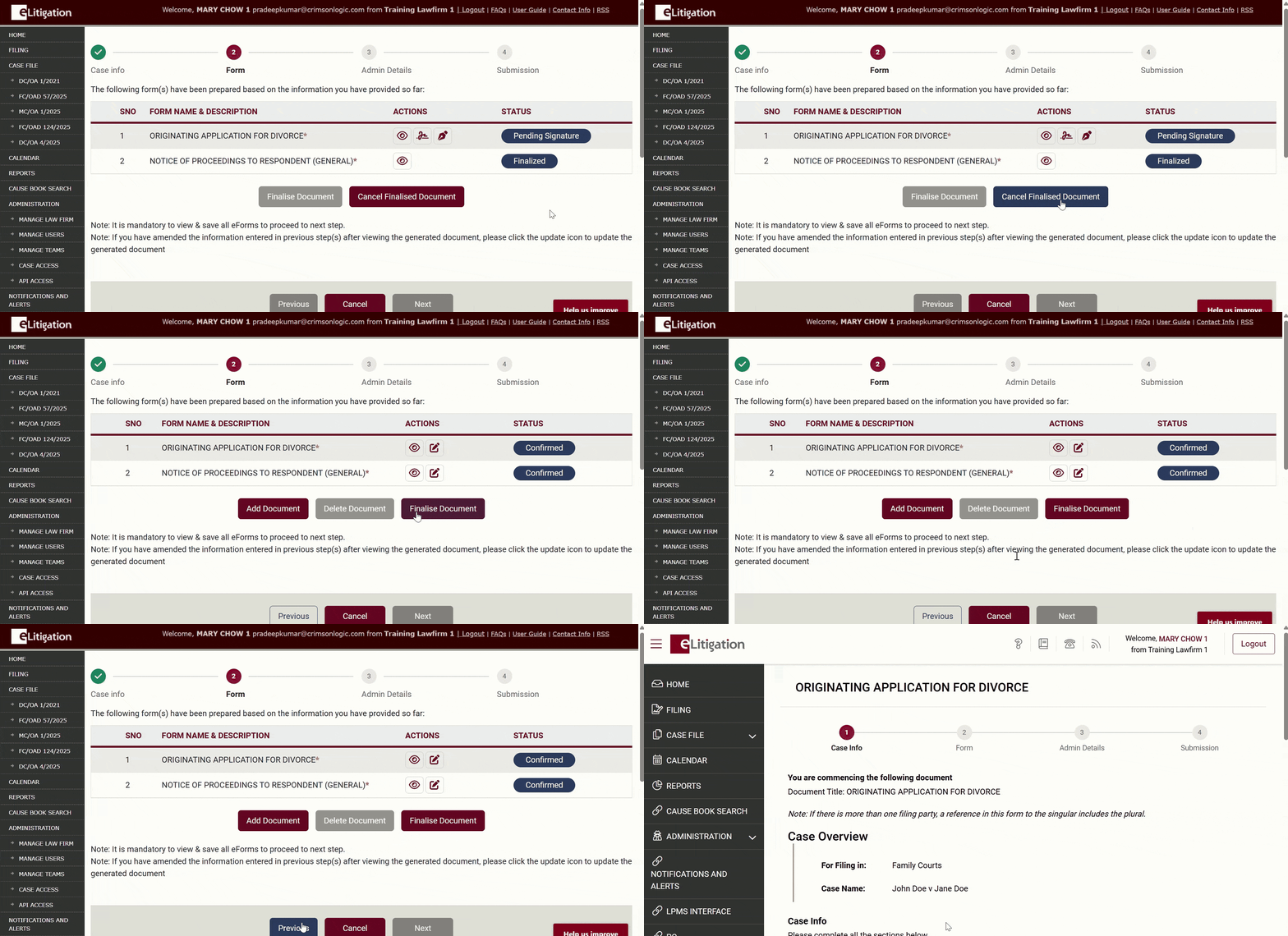
- Return to “Step 1: Case Information” section
- If you have finalised the document(s), you will first need to click the “Cancel Finalised Document” button before clicking on “Previous“
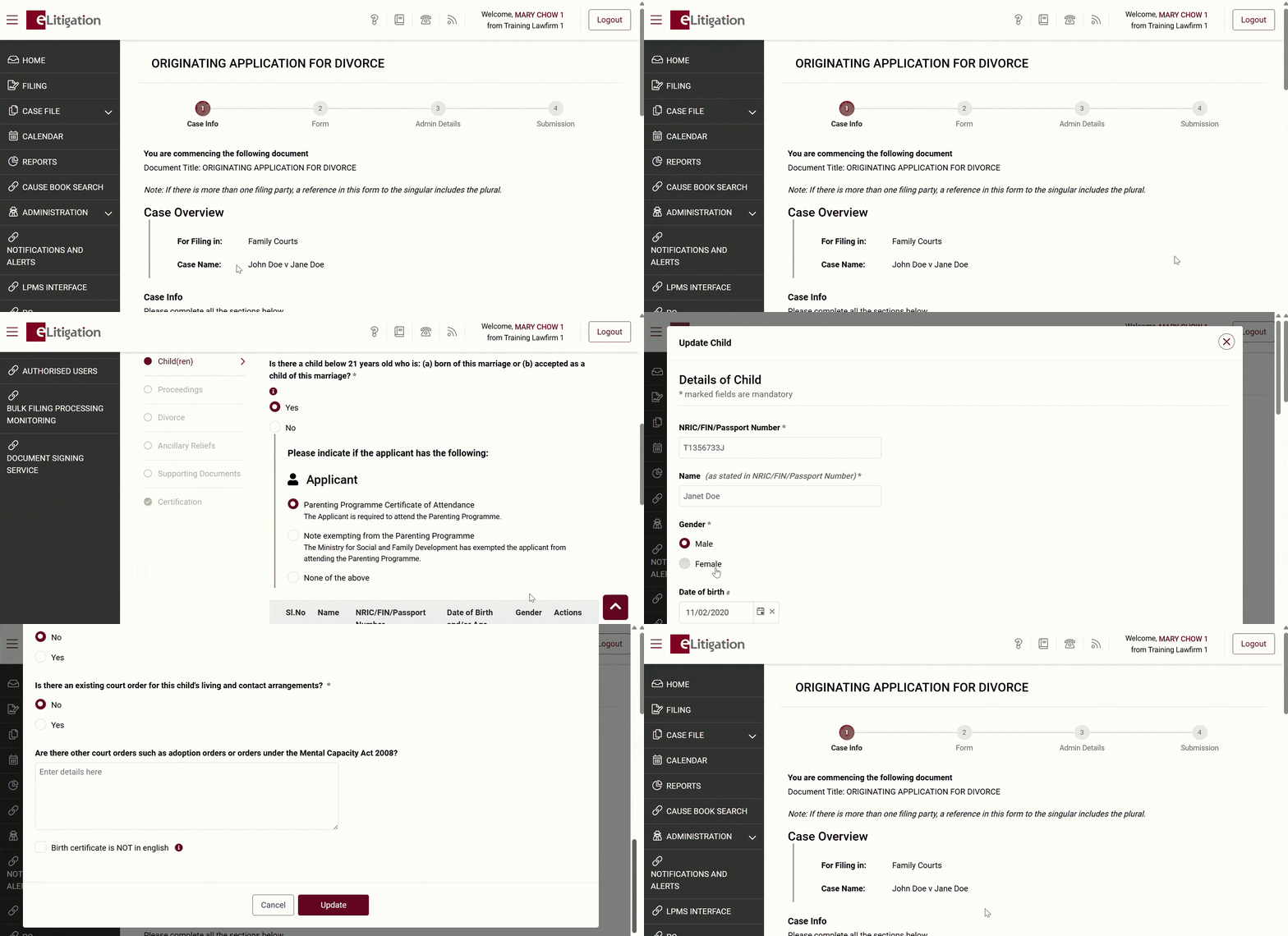
- Amend the case details accordingly. In this example, we are amending the child’s details.
- Navigate back to the “Step 2: Forms” section
- Re-load the eForms (by clicking on the “Pencil” icon) and re-confirm them
- Ensure that the forms reflect the updated information before proceeding.