
- View and confirm all eForms
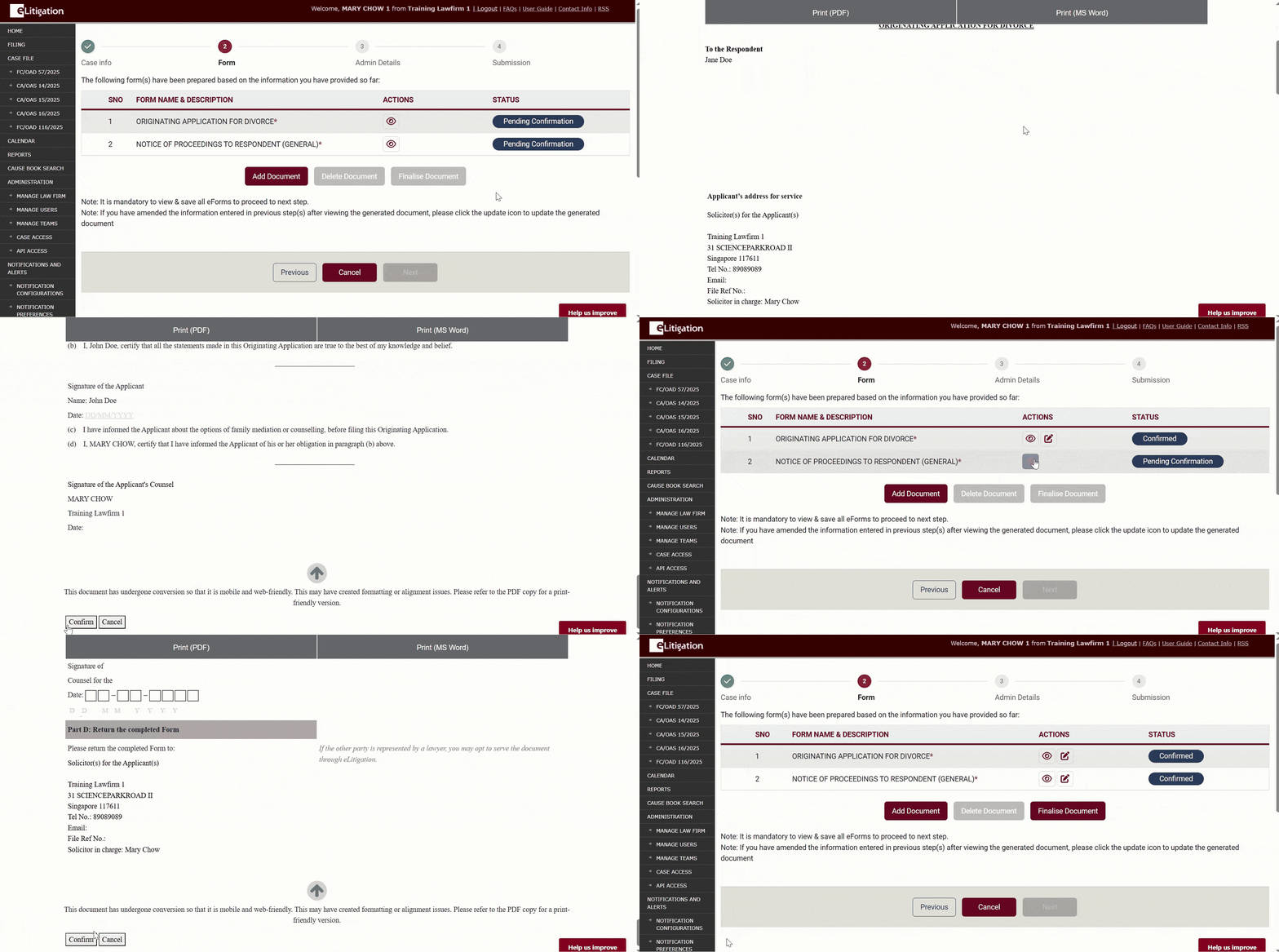
- Finalise documents
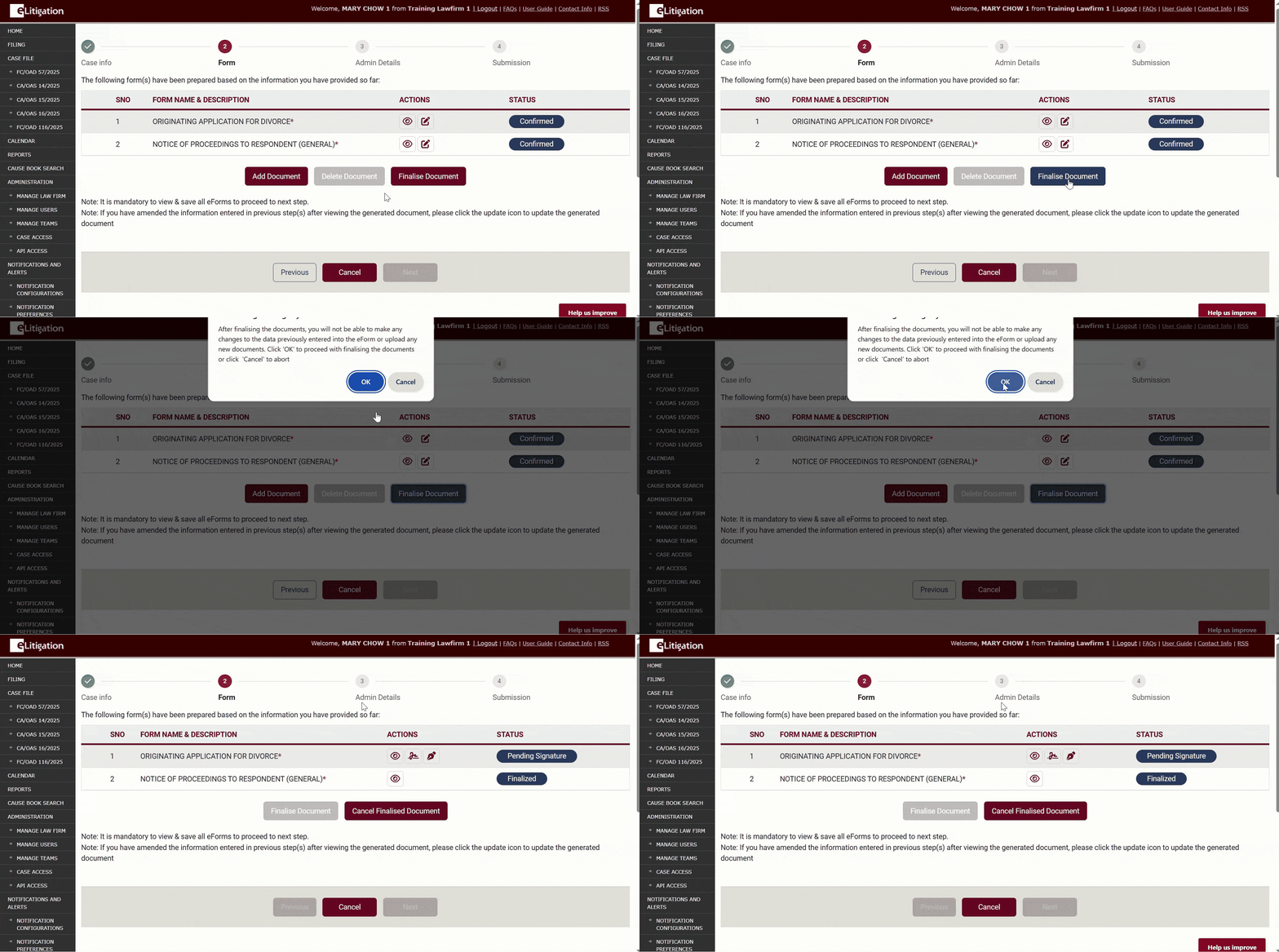
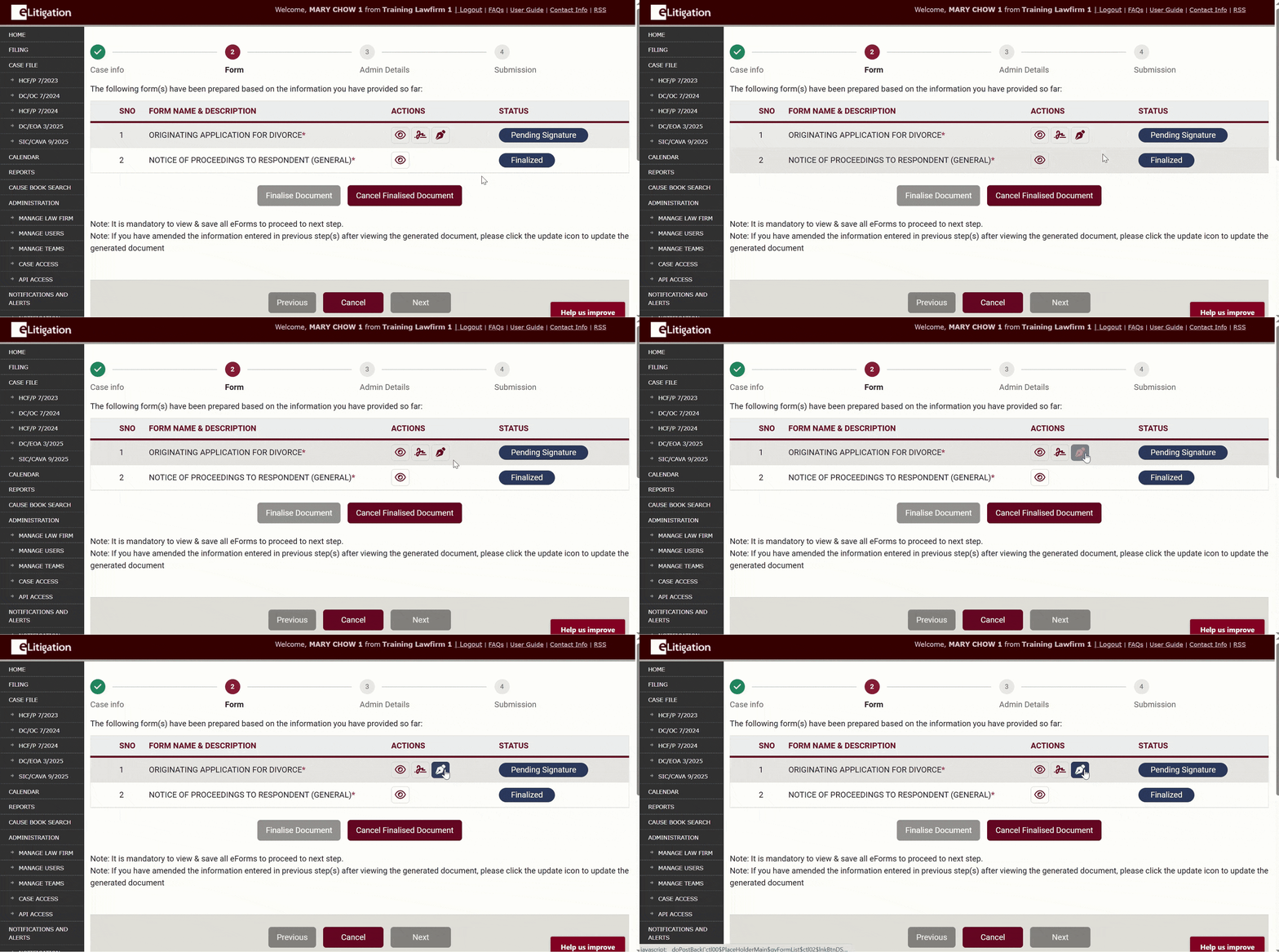
- Click on the “digital signing” icon
- You will be brought to the Document Signing Service (“DSS”) – Signers screen. Add / delete signers or modify details eg deadlines, email addresses (where necessary).
- The current version of DSS does not support changing the order of signers. You will need to remove signers and add them again according to the desired order.
- The order of signing cannot be modified after the document has been submitted.
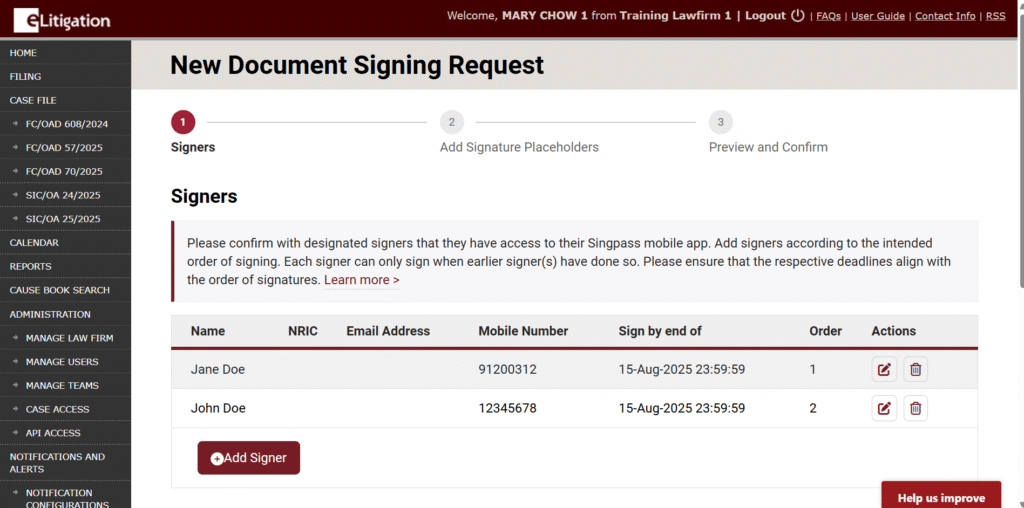
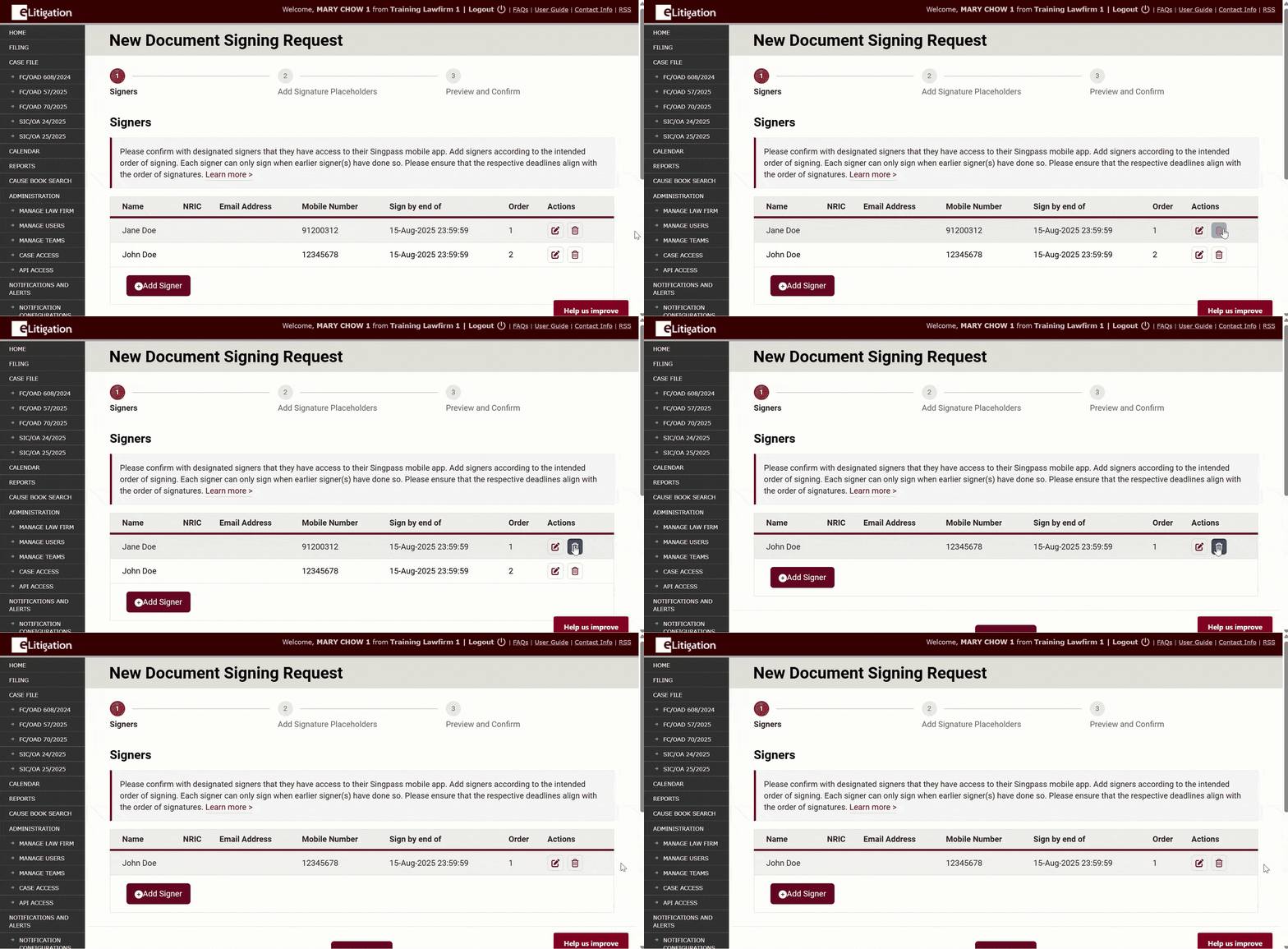
- Delete a signer – click on the “Delete” icon
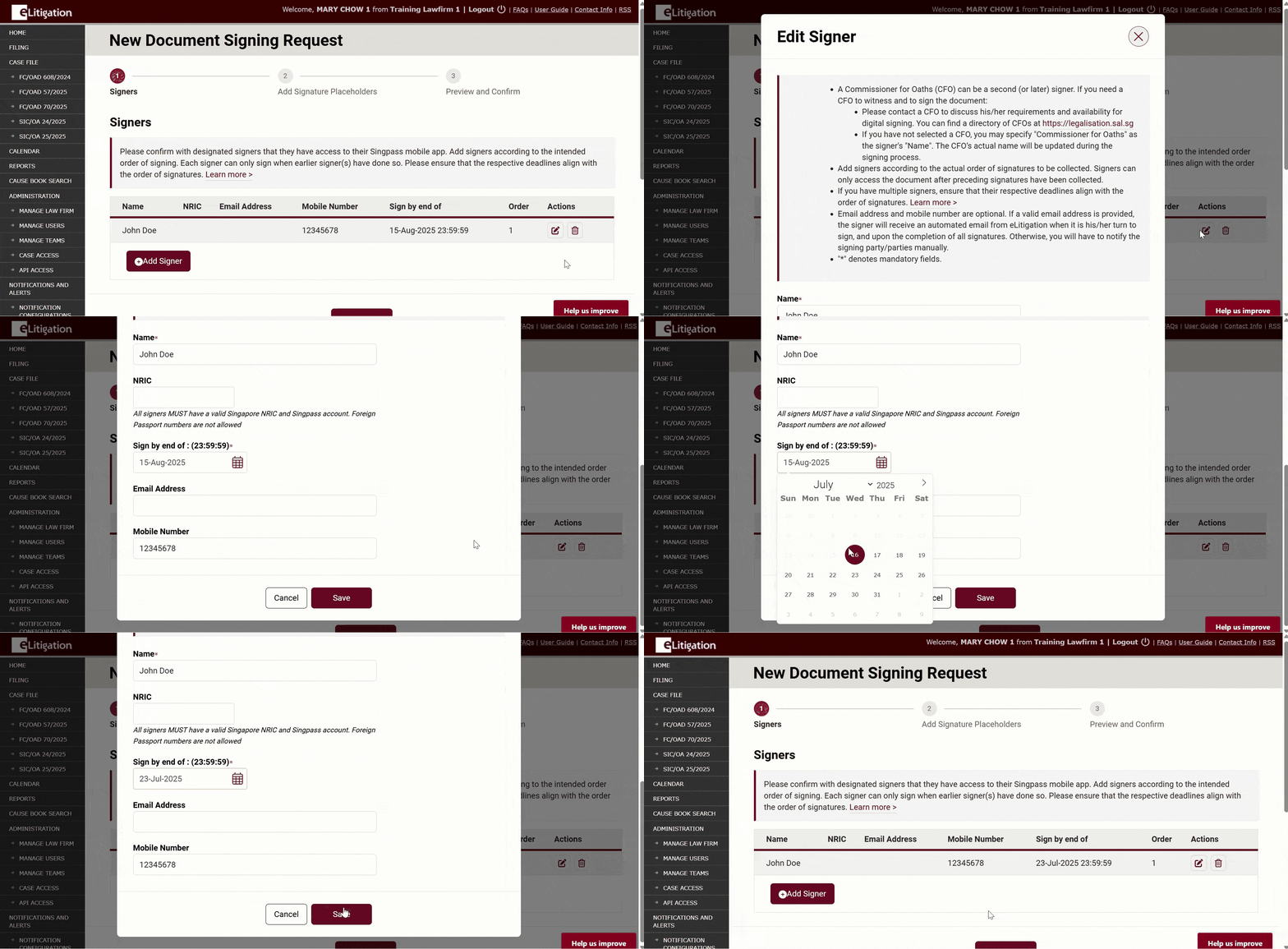
- Modify deadlines – click on the “Edit” icon.
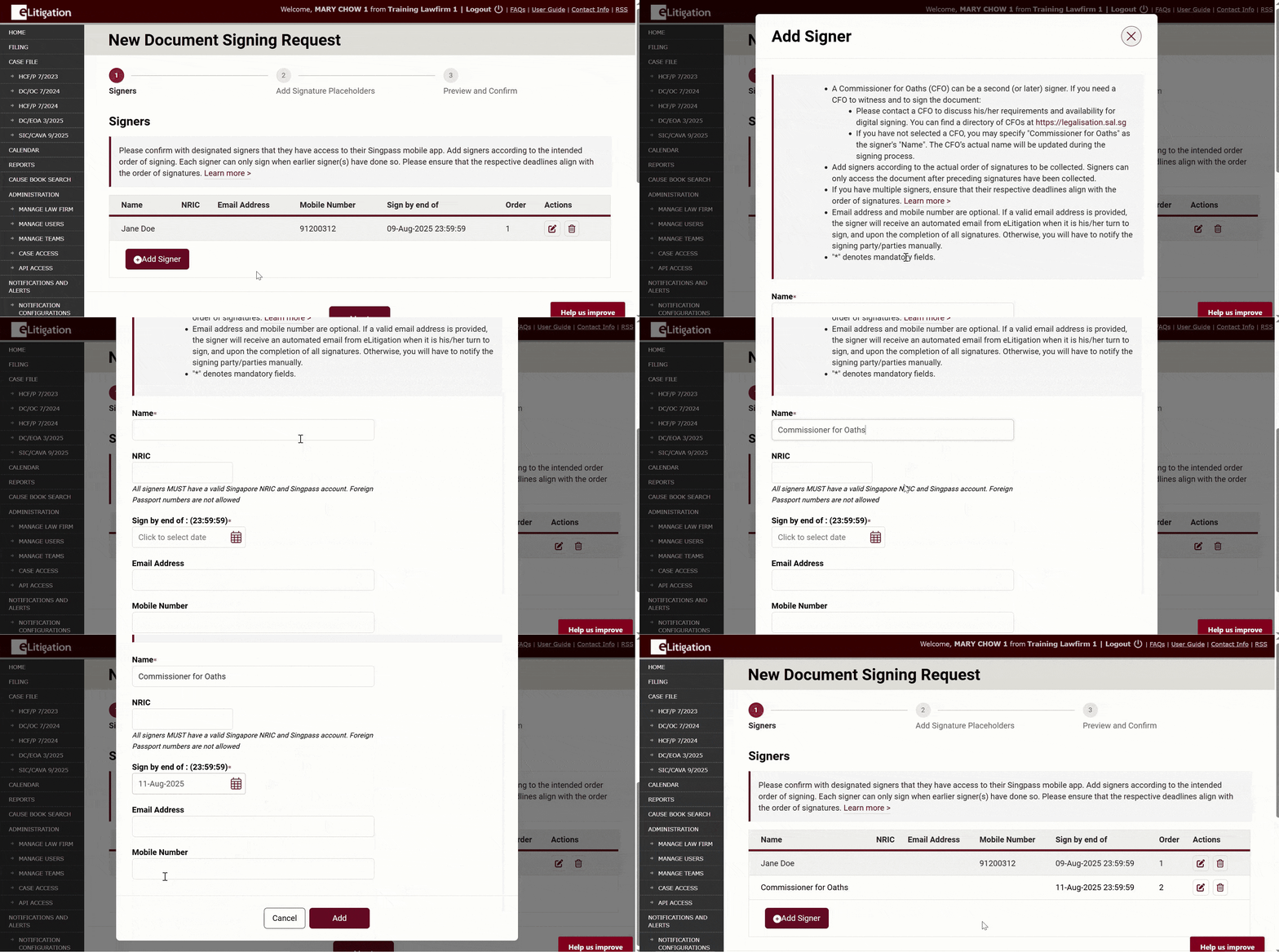
- Add a signer – click on the “Add Signer” button. Enter a valid email address if you would like the signer to receive an automated email from eLitigation when it is his/her turn to sign.
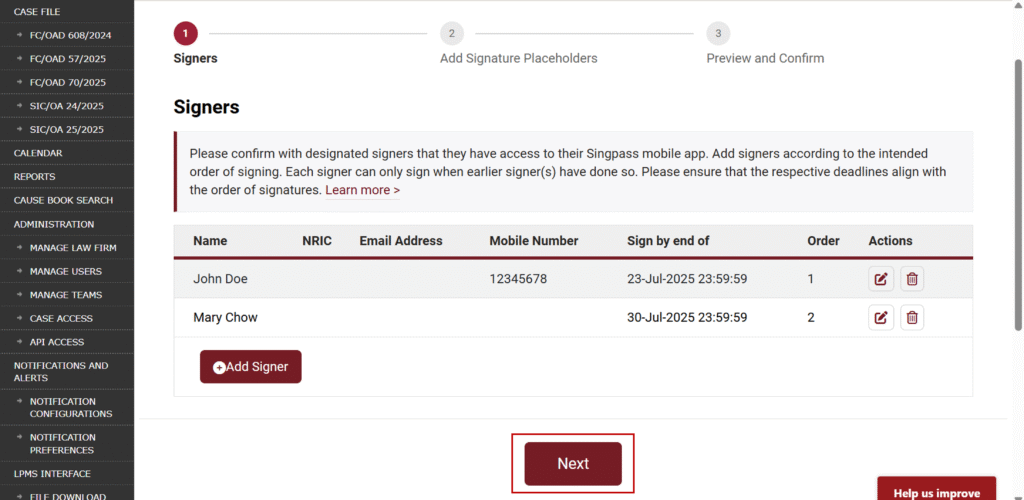
- Once you are done with the Signers section, click on the “Next” button
- Add Signature Placeholders in the document
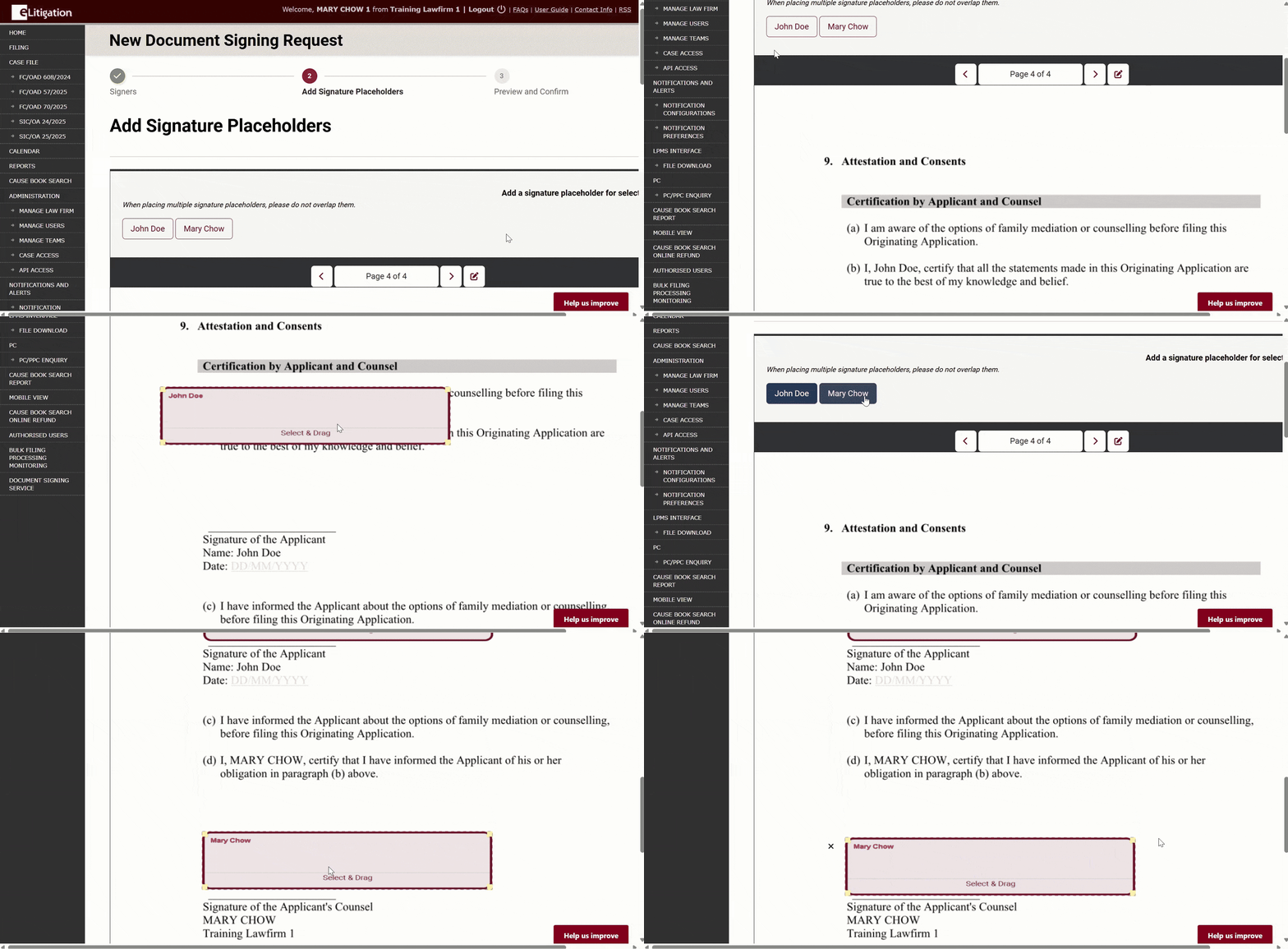
- Click “Next” at the bottom of the page
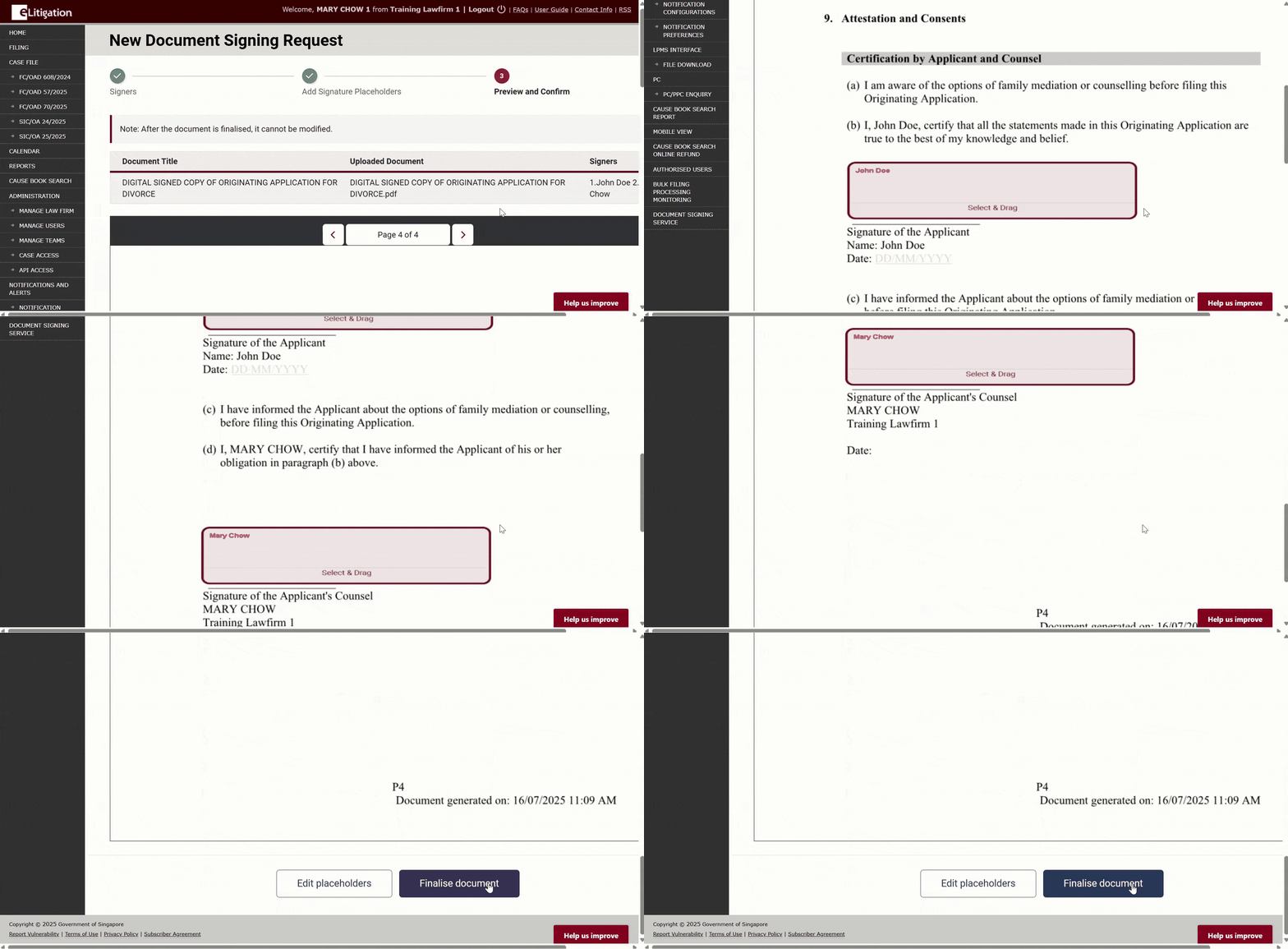
- Preview and confirm the document. Click “Finalise document” when ready.
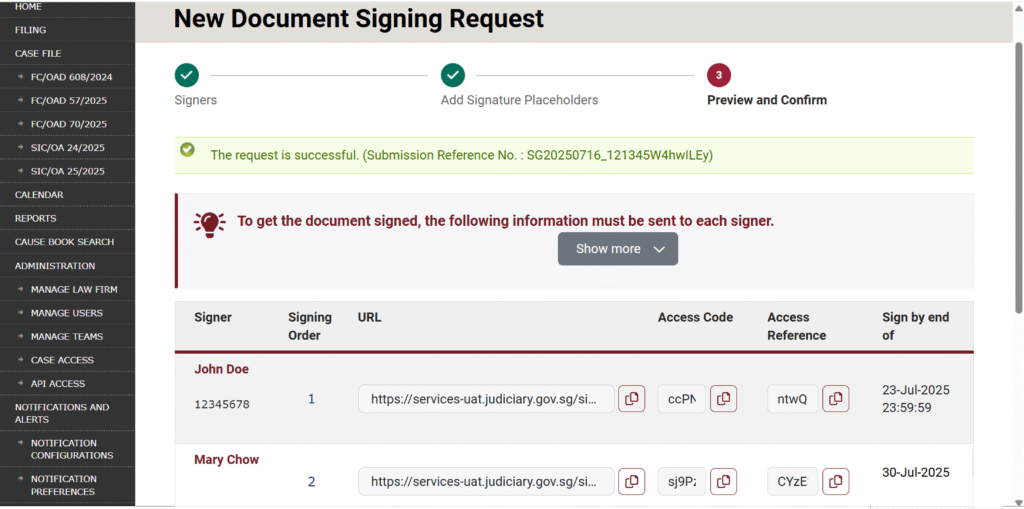
- DSS will generate personalised access details (ie document URL, access code and access reference) for each signer. Signers need these details to access and sign the document.
- If a valid email address is provided, the signer will receive an automated email from eLitigation when it is his/her turn to sign, and upon the completion of all signatures. Otherwise, you will have to notify the signing party/parties manually.
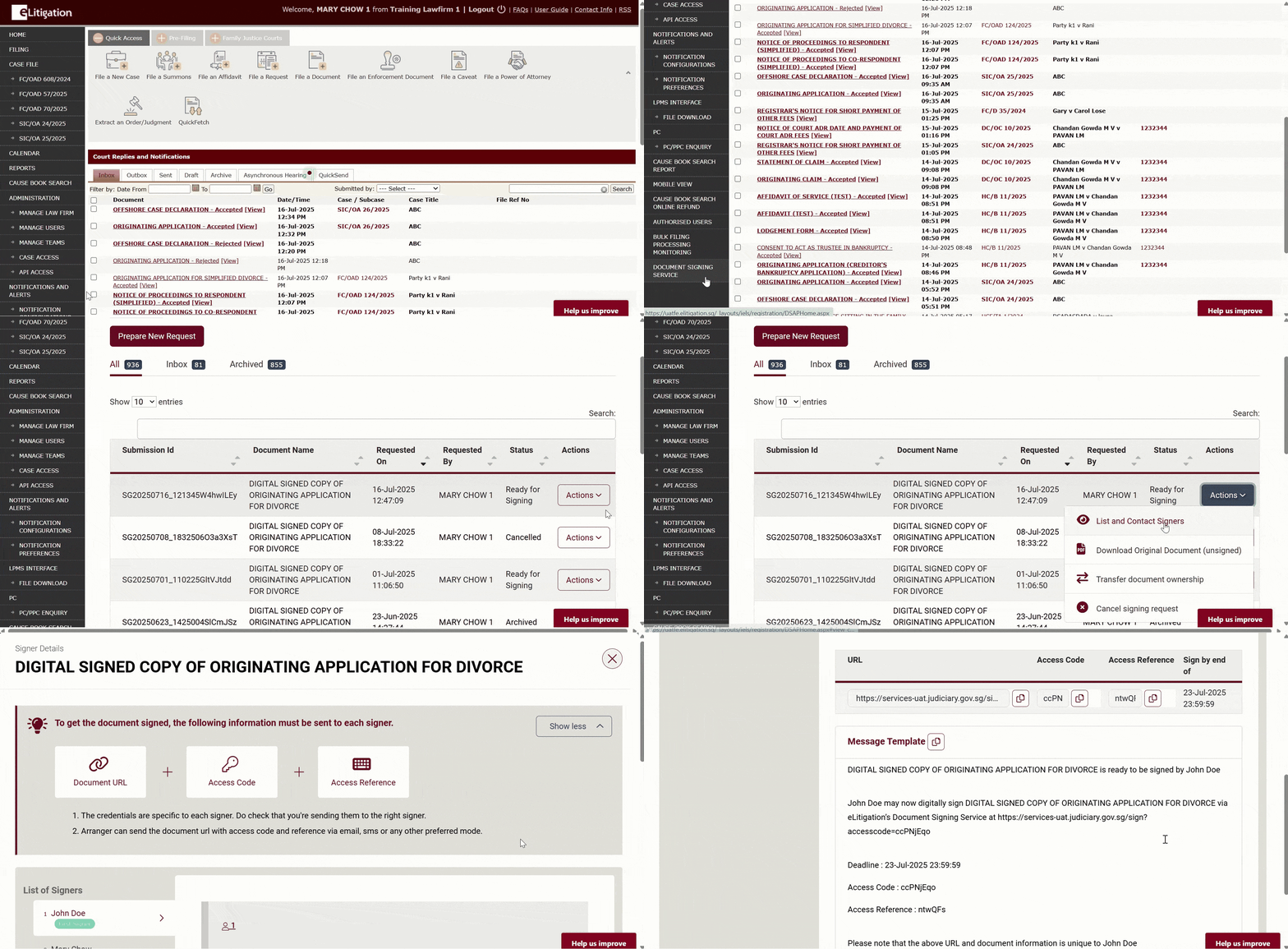
- Retrieval of the suggested message templates (personalised with each signer’s access details) for email, WhatsApp, Telegram, etc
FAQs are available at elitigation.sg > FAQ >Document Signing Service (DSS) Guide for eLitigation Users